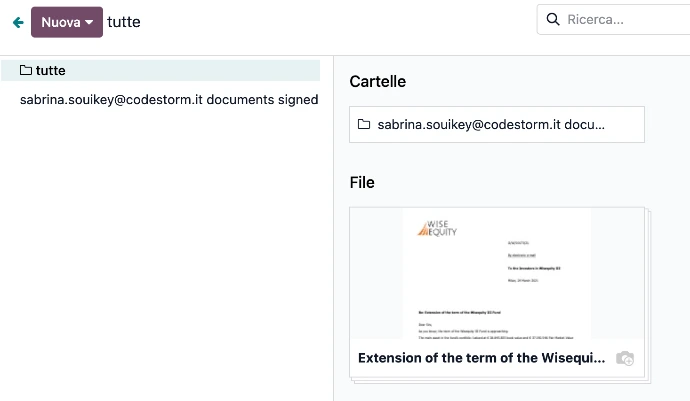
Runbook for Using the Portal
Portal Registration
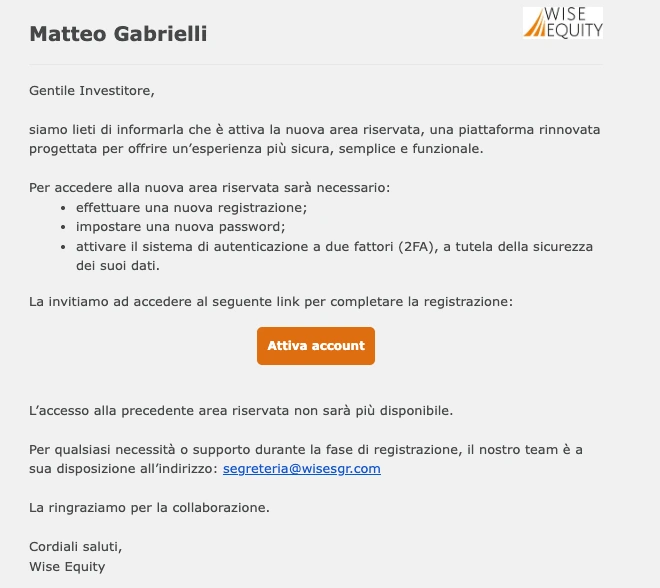
To complete the first login to the Odoo-Wise portal, users must access it via the email they received.
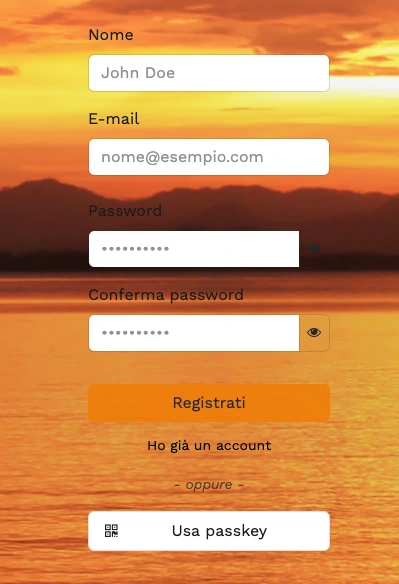
Once the “Activate account” button has been clicked, the form must be completed with the required information.
Portal Access
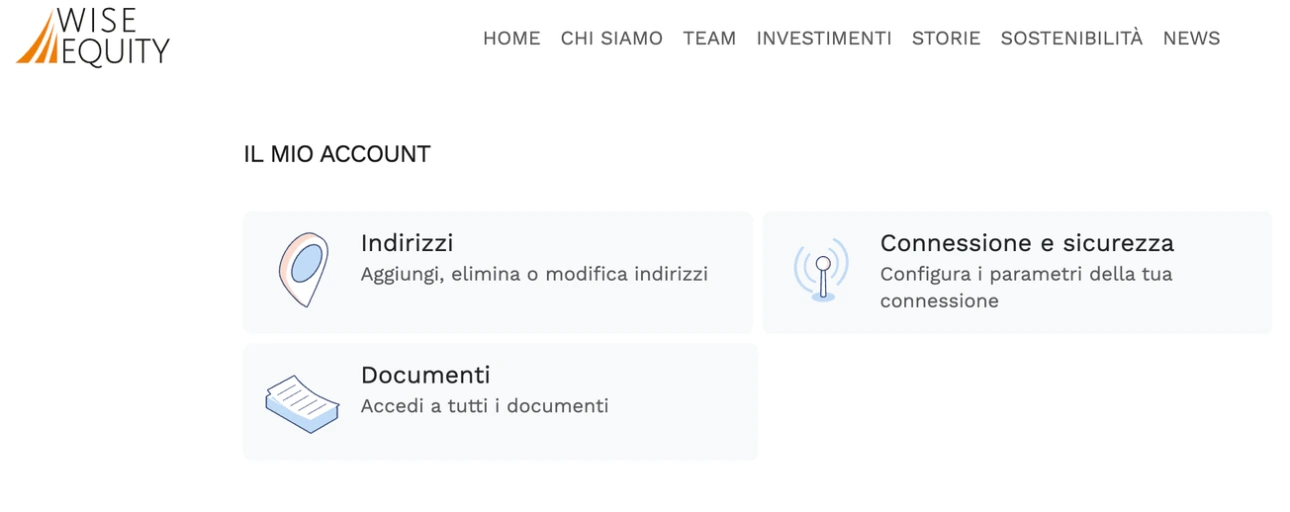
Once logged in, the user will be redirected to the page dedicated to their account on Odoo.
If, in the previous portal, the user logged in using a username, the same username must also be used to access the new system. Password reset, however, can only be performed using the email address associated with the account.
Enable two-factor authentication
At this stage, it is essential to go to the “Connection and Security” section and proceed with enabling two-factor authentication.
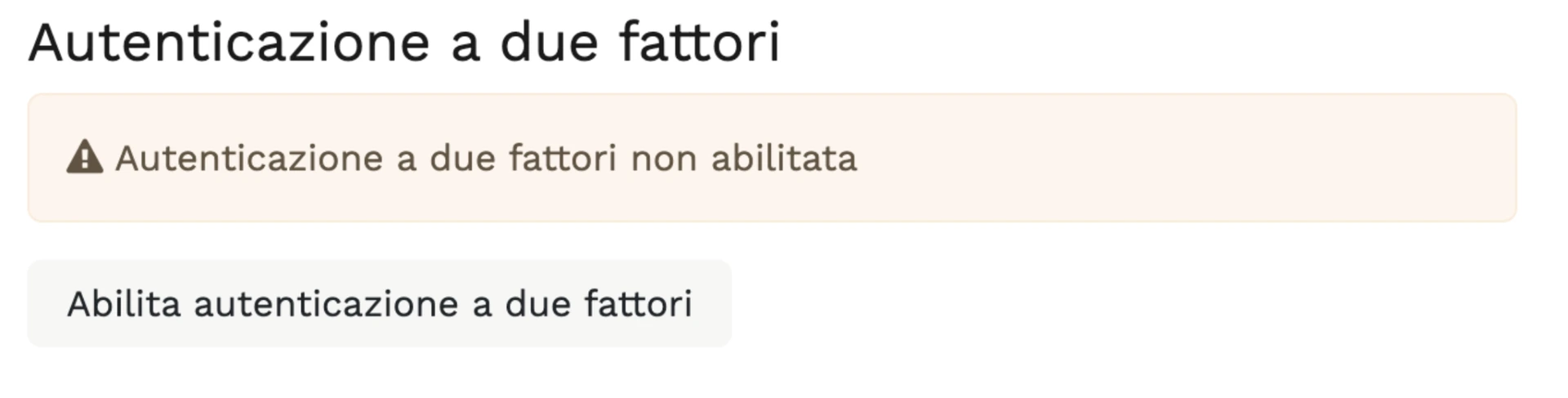
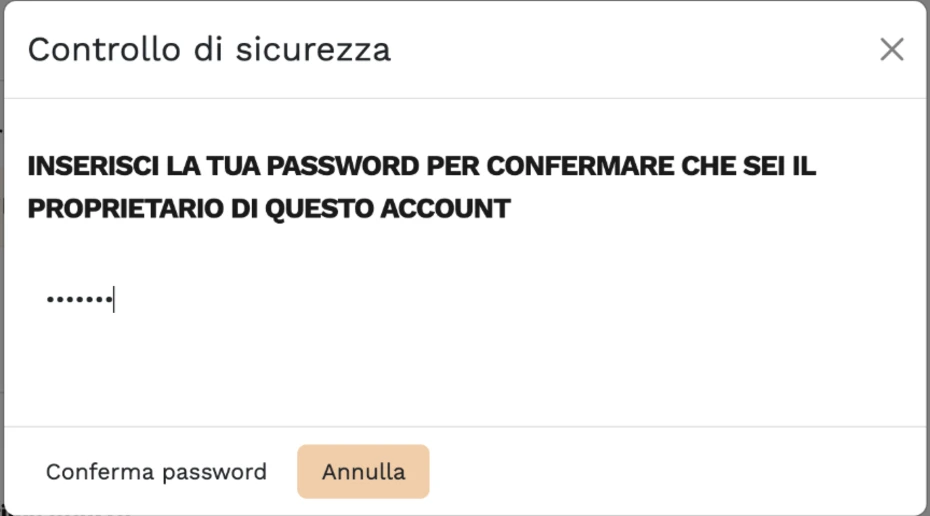
You will be asked to enter the password set during portal registration.
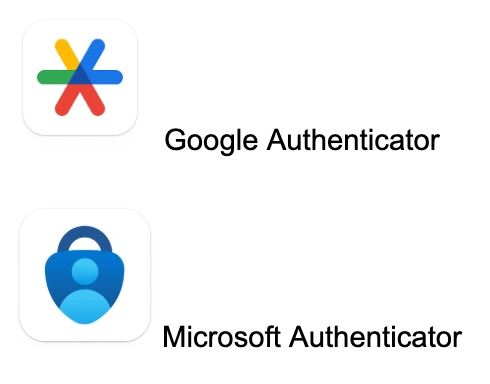
Next, you will need to scan the QR code using your mobile device. We recommend using one of these two apps:
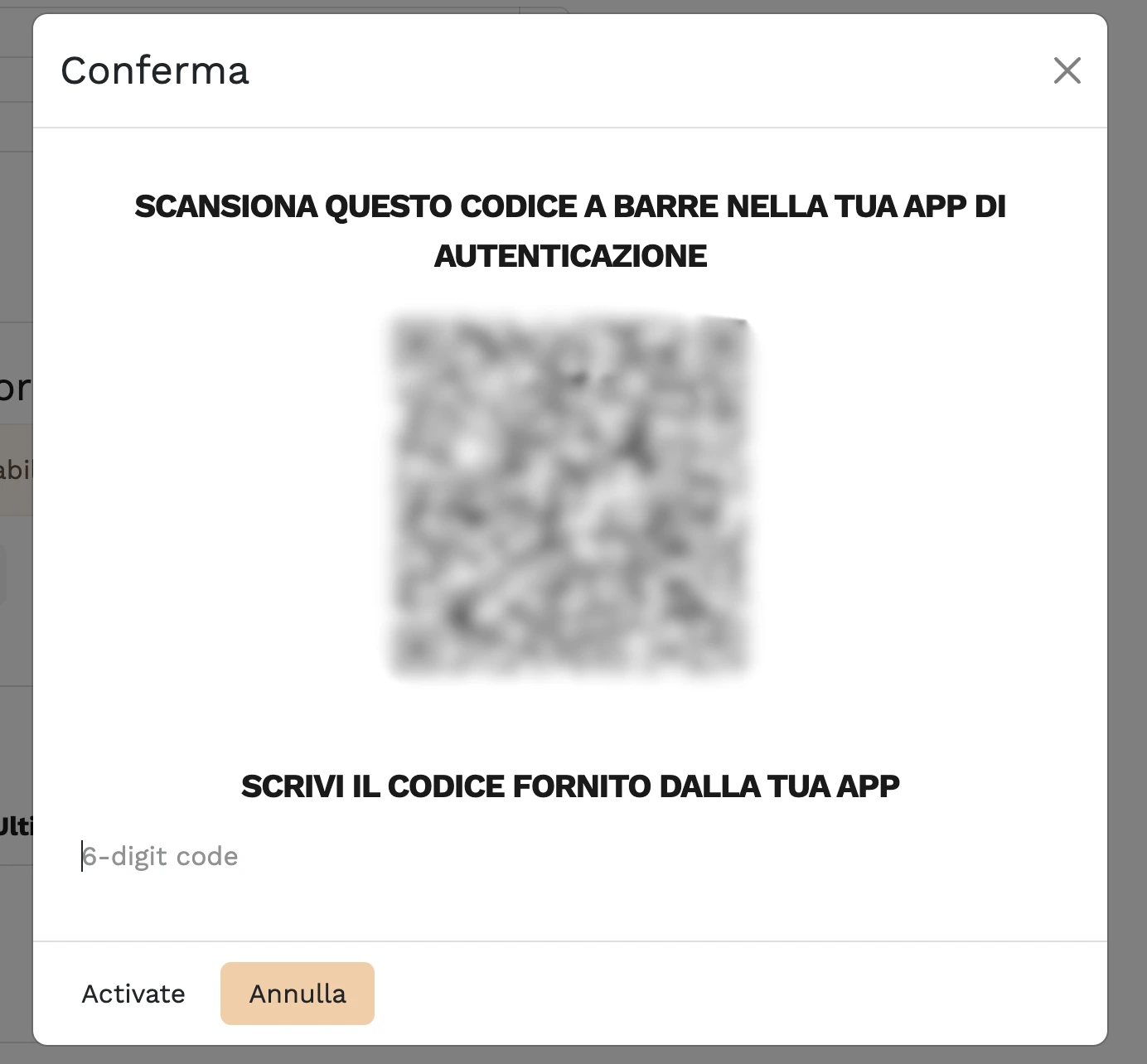
Once the code is scanned through the app, a 6-digit code will be displayed for you to enter. If the code is entered correctly, you will receive a confirmation email of the two-factor authentication activation within a few minutes.
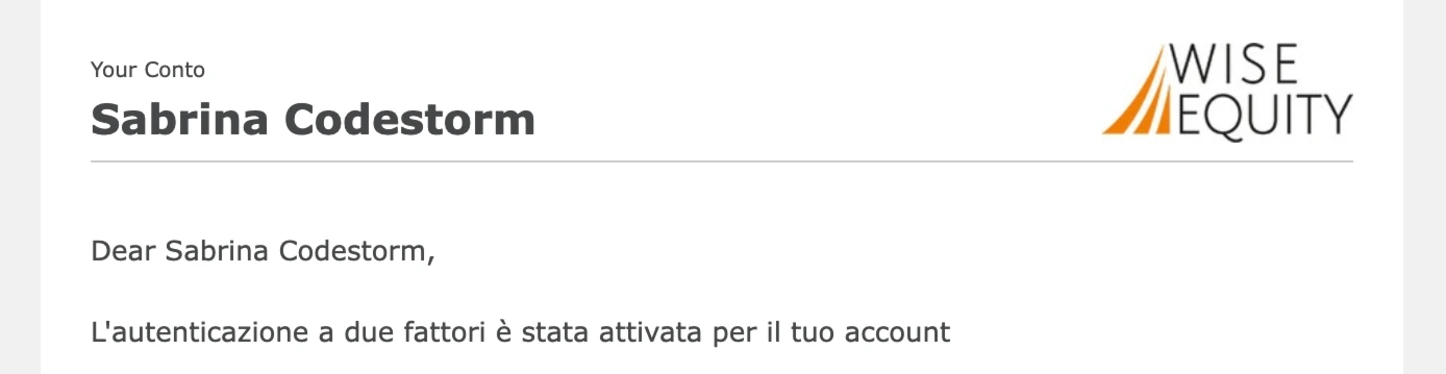
Two-factor authentication will also appear as enabled in the corresponding section of the Odoo portal.

Document Access
Enabling two-factor authentication allows access to a new section of the Odoo portal called “Documents.”
Within this section, all folders and documents that you are authorized to view and download will be available.
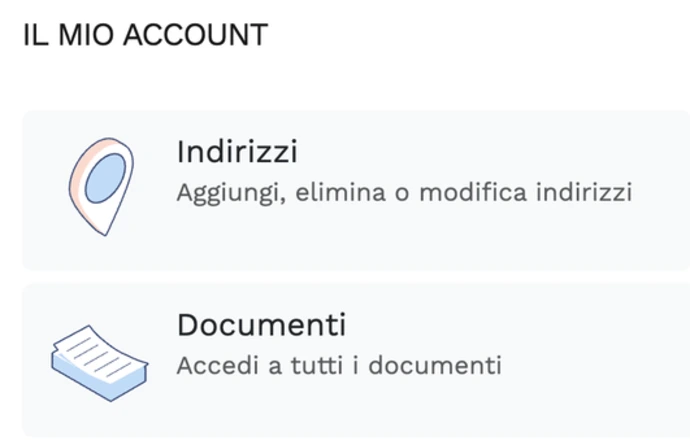
The folder “name documents signed” is specifically dedicated to uploading documents signed by users.